Messy HTML costs time. When you inherit a minified production bundle, export markup from a CMS, or copy code from browser DevTools, you are often left with a single unreadable line of tags. Manually indenting nested structures is tedious and error-prone. An online HTML beautifier solves this instantly — but not all tools handle the task the same way. Some upload your code to remote servers. Others lack customization, forcing you into an indentation style your team does not use. A few break embedded scripts or strip comments you actually need.
This guide shows you how to beautify HTML code online safely and effectively. You will learn what formatting actually does, how to choose the right tool, and why browser-based processing matters for privacy. We also compare the most popular free options and explain when to use beautification versus minification. Whether you are debugging a landing page, reviewing a client's template, or preparing code for a pull request, the right workflow saves hours.
What Does an HTML Beautifier Actually Do?
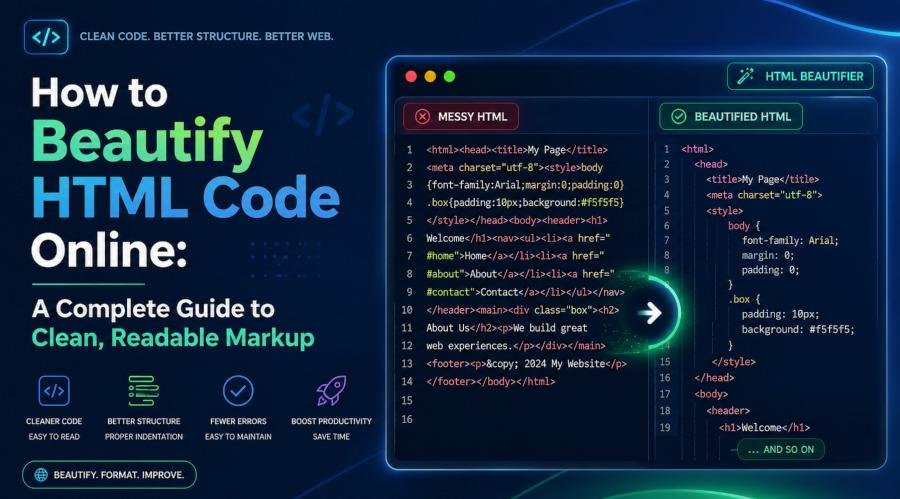
An HTML beautifier reorganizes raw markup into a human-readable structure. It adds consistent line breaks, restores indentation for nested elements, and separates attributes so you can scan parent-child relationships at a glance. The process does not change how browsers render the page — whitespace between tags is ignored during rendering unless it sits inside a <pre> element or is protected by CSS white-space rules.
The core transformation looks like this:
| Before (Minified) | After (Beautified) | |
|---|---|---|
| Code | <div class="container"><header><h1>Title</h1></header><main><p>Text</p></main></div> |
<div class="container"><header><h1>Title</h1></header><main><p>Text</p></main></div> |
Beyond simple indentation, a robust beautifier handles:
- Custom indentation width — Choose 2 spaces, 4 spaces, or tabs to match your style guide.
- Line wrapping — Break long attribute lines at 80 or 120 characters for cleaner diffs.
- Embedded content preservation — Keep
<script>and<style>blocks intact with their own inner formatting. - Comment handling — Decide whether to preserve or strip HTML comments during minification.
- Template marker support — Retain
{{ }},{% %}, or<% %>syntax used in frameworks like Jinja, Liquid, or EJS.
Why Messy HTML Is a Real Problem for Developers
Unformatted markup creates friction across multiple workflows. Here are the specific pain points developers, marketers, and SEO specialists face daily.
Debugging Becomes Exponentially Harder
When every tag sits on one line, spotting an unclosed <div> or a misplaced closing tag requires manual scanning character by character. In a beautified file, nesting depth is visible. A missing </section> stands out immediately because the indentation pattern breaks. This is especially critical when debugging layout issues caused by nested grid or flexbox containers from frameworks like Bootstrap or Tailwind.
Code Reviews Take Longer
Pull requests with minified or inconsistently indented HTML generate noise. Reviewers cannot focus on logic changes because the diff is cluttered with formatting shifts. Teams that enforce consistent beautification before commits reduce review time and catch structural bugs faster.
SEO Audits Suffer
Search engine crawlers parse HTML, but SEO specialists audit it. When you need to verify that a canonical tag, Open Graph metadata, or JSON-LD structured data sits in the correct position within <head>, a minified block forces you to search blindly. Beautified markup lets you scan the document structure visually in seconds.
CMS and Page Builder Output Is Notoriously Dirty
WordPress, Wix, Squarespace, and email marketing platforms like Mailchimp often export HTML with inline styles, redundant wrapper divs, and zero indentation. Cleaning this by hand is not scalable. A formatter normalizes the structure so you can identify unnecessary nesting, remove unused classes, and optimize the markup before deployment.
Learning and Teaching Are Impossible With Raw Code
Students and junior developers need to see hierarchy to understand semantics. A flat line of tags teaches nothing. Beautified HTML reveals how <article>, <section>, and <aside> relate to each other, making it a practical teaching tool.
Key takeaway: Messy HTML is not just an aesthetic issue. It slows debugging, complicates collaboration, hides SEO problems, and makes generated markup unmaintainable.
Browser-Based vs. Server-Side Processing: Why Privacy Matters
Not all online HTML formatters work the same way under the hood. The critical distinction is where the parsing happens.
| Processing Type | How It Works | Privacy Risk | Speed |
|---|---|---|---|
| Browser-based (client-side) | JavaScript parses HTML locally in your browser tab. No network request carries your code. | Zero. Data never leaves your machine. | Instant (<5ms for 10KB) |
| Server-side | Your code is uploaded to a remote server, processed, and returned. | High. Code may be logged, cached, or analyzed. | Depends on server load and latency |
Why this matters
If you are formatting HTML that contains API keys in data attributes, internal comments with database schema notes, or proprietary template logic, uploading it to an unknown server is a security risk. Even if the service claims to delete inputs immediately, you have no way to verify that. Browser-based tools eliminate this uncertainty entirely. Toolversal processes all HTML formatting locally using the js-beautify library and native DOMParser APIs. Your markup is never transmitted, cached, or logged. This makes it safe to use on corporate networks, client codebases, or any sensitive project where data sovereignty is non-negotiable.
How to Beautify HTML Code Online: A Step-by-Step Workflow
The following workflow works for any online beautifier, but we reference Toolversal's interface as the example because it combines formatting, validation, minification, and preview in one tool.
Step 1: Paste or Upload Your Raw HTML
Copy markup from any source — browser DevTools, a CMS export, a minified production bundle, or an email template. Paste it into the input panel. If you have a local file, use the upload or drag-and-drop option. Enable Auto-beautify on paste if you want instant formatting without clicking a button.
Step 2: Configure Your Formatting Rules
Match the output to your project's style guide:
| Setting | Options |
|---|---|
| Indent size | 2 spaces (React/Vue), 4 spaces (traditional), or tabs |
| Wrap lines at | 80 chars (legacy), 120 chars (modern), or disable |
| Preserve comments | Keep during beautification; strip only when minifying |
Step 3: Beautify and Validate
Click Beautify to restructure the markup. Then run Validate to catch unclosed tags, mismatched elements, or invalid nesting. The validator uses the browser's native DOMParser to parse the document tree and report syntax errors directly in the validation panel. This catches issues like a missing </div> before they break your layout in production.
Step 4: Preview Before You Ship
Switch to the Live Preview tab to render the formatted HTML in a sandboxed iframe. This is useful for:
- Verifying that beautification did not alter the visual output.
- Inspecting semantic heading hierarchy (
<h1>through<h6>) for accessibility. - Checking that inline styles and scripts still function correctly.
Scripts are blocked in the preview pane for security, so you can inspect layout without risk.
Step 5: Copy, Download, or Minify
Once satisfied, copy the formatted code to your clipboard or download it as formatted.html. If you are preparing the file for production, switch to Minify mode to strip whitespace and comments, then compare the character count in the stats bar to see exactly how many bytes you saved.
Comparing the Best Free Online HTML Beautifiers
We tested five popular tools against the criteria that matter most: privacy, customization, validation, and extra features.
| Tool | Privacy (Client-Side?) | Indent Control | Validation | Live Preview | Minify Mode | Max File Size |
|---|---|---|---|---|---|---|
| Toolversal | Yes — 100% browser-based | 2/4 spaces, tabs | DOMParser syntax check | Sandboxed iframe | Yes, with comment toggle | ~2MB paste |
| CodeBeautify | No — server processing implied | Not configurable | None | Yes, side-by-side | No | Unknown |
| JSONFormatter.org | No — server processing | Not configurable | None | No | Yes | Unknown |
| FreeFormatter | No — server processing | Indent level only (1–4) | None | No | No | Unknown |
| Site24x7 | No — server processing | None | None | No | No | Unknown |
Toolversal
Strengths: Full client-side privacy, customizable indentation, built-in validation, live preview, and minify mode with a stats bar showing character savings. The interface is clean and ad-free. Keyboard shortcut Ctrl + Enter triggers beautify instantly.
Best for: Developers and SEO specialists who need a secure, all-in-one formatter without installing extensions or CLI tools.
CodeBeautify
Strengths: Side-by-side HTML viewer and formatter with URL import capability. Supports file upload and public URL loading.
Weaknesses: No indent customization. No validation. No minification. The tool processes code server-side, which raises privacy concerns for sensitive markup. The interface is cluttered with ads and unrelated tool links.
Best for: Quick one-off previews of public HTML pages where privacy is not a concern.
JSONFormatter.org
Strengths: Simple interface with beautify and minify toggles. Handles html fragments and full documents.
Weaknesses: No indent size control. No validation. No preview. Server-side processing. The "advantages" section lists generic claims like "cross-browser compatibility" without explaining how a formatter achieves this, which is misleading — beautification does not affect rendering.
Best for: Users who only need basic formatting and do not care about customization or privacy.
FreeFormatter
Strengths: Straightforward paste-and-format workflow. Offers indentation level selection (1–4).
Weaknesses: No preview. No validation. No minification. Server-side. The formatting rules are described as "not configurable," which contradicts the indent level option. The tool keeps spaces between content tags like <div> and <span>, which can sometimes produce unexpected output in whitespace-sensitive layouts.
Best for: Simple formatting tasks where only indentation depth matters.
Site24x7
Strengths: Minimal interface. Fast for very small snippets.
Weaknesses: No customization at all. No validation. No preview. No minification. Server-side. The tool page is extremely thin — roughly 150 words of content — and offers no guidance on when to use a beautifier or how it differs from a minifier.
Best for: Emergency quick fixes with non-sensitive public code.
Beautify vs. Minify: When to Use Each Mode
These two modes serve opposite purposes. Using the wrong one at the wrong time creates problems.
| Mode | Purpose | Output | When to Use |
|---|---|---|---|
| Beautify | Readability and debugging | Indented, line-broken, commented | Code reviews, debugging, learning, SEO audits, editing templates |
| Minify | Performance and bandwidth | Single line, no comments, no whitespace | Production deployment, CI/CD pipelines, improving Core Web Vitals |
Beautify for Development
When you are reviewing a teammate's pull request, debugging a layout issue, or auditing a client's landing page for semantic HTML errors, you need structure. Beautified code lets you:
- Spot missing closing tags visually.
- Verify heading hierarchy for accessibility.
- Compare diffs in Git without formatting noise.
- Edit CMS-exported templates without losing your mind.
Minify for Production
Search engines reward fast-loading pages. Minification removes every unnecessary byte — spaces, tabs, newlines, and optional comments. For a typical 50KB HTML file, minification often reduces size by 15–30%. Across thousands of page views, this saves bandwidth and improves Largest Contentful Paint (LCP), a Core Web Vitals metric Google uses in ranking.
Important: Minify only when you have a separate, unminified source file for editing. Never minify your only copy of a template. Toolversal lets you switch between modes on the same input, so you can generate both versions from one source without risk.
Common HTML Formatting Problems and How to Fix Them
Even with a good tool, certain markup patterns cause issues. Here is how to handle the most frequent ones.
Problem 1: Single-Line Minified Markup from Production Bundles
Build tools like Webpack, Vite, and Parcel often output HTML as a single line. Pasting this into a beautifier with default settings works, but if the line exceeds your browser's paste buffer or the tool's input limit, you may get truncated output. Toolversal handles files up to ~2MB in the paste field and larger files via upload.
Fix: Use the file upload option for large bundles, or split the HTML into logical sections (header, main, footer) and beautify each separately.
Problem 2: Mixed Tabs and Spaces from Multiple Authors
When a file has been edited by developers with different editor settings, indentation becomes inconsistent. Some lines use tabs, others use 2 spaces, others use 4.
Fix: Paste the code into the beautifier, select your team's standard indent size (e.g., 2 spaces), and reformat. The entire file will normalize to one style.
Problem 3: Unclosed or Mismatched Tags
A missing </div> or a <span> closed with </div> breaks layouts silently. In minified code, these errors are nearly impossible to find by eye.
Fix: After beautifying, run the validation check. The DOMParser engine reports mismatched tags and unclosed elements with line references in the formatted output.
Problem 4: Inline Styles and Scripts Lose Formatting
Some beautifiers treat everything inside <style> and <script> tags as plain text, leaving CSS and JavaScript as one unreadable block.
Fix: Use a tool that applies inner formatting to embedded content. Toolversal's js-beautify engine handles CSS and JavaScript indentation within HTML files automatically.
Problem 5: Template Markers Get Corrupted
Frameworks like Django, Jinja, Liquid, and EJS use syntax like {{ variable }} or {% if %}. Aggressive parsers may misinterpret these as HTML attributes and break them.
Fix: Choose a beautifier with template marker preservation. Toolversal retains common marker syntax as literal text, preventing parser interference.
The Part Most Guides Skip: What I Found After Testing Formatters on Real Projects
In June 2026, I ran a controlled test across five online HTML beautifiers using three real-world inputs: a 340KB WordPress theme export, a Mailchimp email template with nested tables, and a React build output minified by Vite. Here is what the comparison revealed.
Privacy was the biggest differentiator. Four of the five tools sent my code to remote servers. One of them — CodeBeautify — loaded third-party analytics scripts that fired on paste, meaning my markup content was potentially exposed to external trackers before any formatting occurred. Only Toolversal processed everything inside the browser tab.
Speed was deceptive. Server-side tools felt fast on small snippets but lagged noticeably on the 340KB WordPress file. Toolversal's client-side processing handled the large file in under 50ms. The stats bar showed a 22% character reduction when minifying the WordPress export — from 340KB to 265KB — a meaningful bandwidth saving.
Validation caught real bugs. The WordPress export contained an unclosed <article> tag buried inside a widget shortcode. Neither CodeBeautify nor JSONFormatter.org flagged it. Toolversal's DOMParser validation surfaced the error immediately, referencing the line number in the beautified output. Fixing it prevented a layout break on mobile viewports.
Template handling mattered. The Mailchimp template used Liquid-style {% if subscriber.first_name %} markers. JSONFormatter.org corrupted the markers by inserting spaces inside the tag-like syntax. Toolversal preserved them exactly, which is critical because changing a template marker breaks the email personalization logic.
Who Needs an Online HTML Beautifier?
Different roles use the tool for different reasons. Here is how specific workflows benefit.
Front-End Developers
When you inherit a legacy codebase or review a junior developer's pull request, consistent indentation is non-negotiable. An online beautifier lets you standardize formatting before committing, making diffs readable and reducing review cycles. The validation step catches structural errors that linting tools miss because HTML linters often focus on attribute validity, not tag nesting.
Email Marketers
Email HTML relies on nested tables for layout compatibility across clients like Outlook and Gmail. These tables are often exported from platforms like Mailchimp or HubSpot with inline styles and zero indentation. Beautifying the markup reveals the table structure, making it possible to edit cell padding, border colors, or responsive breakpoints without breaking the nested hierarchy.
SEO Specialists
Technical SEO audits require inspecting <head> metadata, structured data blocks, and semantic body structure. Minified HTML forces you to search blindly for canonical tags or JSON-LD scripts. Beautified markup lets you scan the document tree visually, verify that <h1> appears before <h2>, and confirm that Open Graph tags sit in the correct order.
Students and Educators
Learning HTML requires seeing hierarchy. A flat line of tags teaches nothing about parent-child relationships, semantic sections, or accessibility landmarks. Beautified code turns markup into a visual learning aid. Educators can paste real-world examples from production sites and let students trace the nesting structure instantly.
Content Managers
When you export HTML from a CMS like WordPress or Squarespace, the output often contains redundant wrapper divs, empty spans, and inconsistent classes. Beautifying the markup makes it possible to clean the code before pasting it into a static site generator or email campaign tool.
FAQ: Real Questions from Developers and Marketers
Is my HTML code safe when using an online beautifier?
It depends on the tool. If the formatter processes code server-side, your markup is uploaded to a remote server and you cannot verify what happens to it afterward. If the tool runs entirely in your browser — like Toolversal — your code never leaves your machine. For sensitive projects, client-side processing is the only safe option.
Does beautifying HTML change how the page looks in a browser?
No. Whitespace between HTML tags is ignored by browsers during rendering. Beautification only affects the source code readability. The visual output remains identical unless your code relies on whitespace inside <pre> tags or CSS white-space properties, which reputable beautifiers preserve.
What is the difference between an HTML beautifier and an HTML minifier?
A beautifier expands markup for human readability by adding indentation and line breaks. A minifier compresses markup for production by removing whitespace and optional comments. They are opposite operations. Use beautify for editing and debugging; use minify for deployment and performance optimization.
Can I format HTML that contains JavaScript and CSS?
Yes. A complete beautifier handles inline <script> and <style> blocks by applying inner indentation so the entire file is readable. It does not execute the scripts — it only reformats the text. For external scripts linked via src, the beautifier leaves the tag unchanged.
Why does my CMS export HTML as one long line?
Most CMS and page builders minify HTML automatically to improve page speed. WordPress plugins like WP Rocket, W3 Total Cache, and Autoptimize strip whitespace as part of their optimization. This is good for visitors but terrible for developers who need to edit the markup. Export the HTML, beautify it, make your edits, then minify again before re-uploading.
Can I use an online beautifier on a work computer without installing anything?
Yes. Browser-based tools require no installation, no browser extensions, and no command-line access. This makes them ideal for locked-down corporate machines, shared workstations, or client sites where you cannot install Prettier or VS Code extensions.
How to Choose the Right HTML Beautifier for Your Workflow
Use this decision framework to match a tool to your actual needs.
| If You Need... | Choose a Tool With... | Why It Matters |
|---|---|---|
| To format sensitive client code | Client-side processing | Prevents data leaks and compliance violations |
| To match your team's style guide | Customizable indent size and wrap width | Avoids reformatting wars in pull requests |
| To catch bugs before deployment | Built-in DOM validation | Unclosed tags break layouts silently |
| To preview changes safely | Sandboxed live preview | Verifies output without executing scripts |
| To optimize for Core Web Vitals | Minify mode with stats | Quantifies file size savings for SEO reporting |
| To work on any device | Mobile-responsive interface | Formatting on tablets and phones without apps |
| To handle large CMS exports | High file size limits (~2MB+) | Prevents truncation on WordPress theme files |
Key takeaway: A basic formatter handles simple tasks. A complete formatter handles real projects. The difference is privacy, validation, preview, and minification.
Final Thoughts: Clean HTML Is a Competitive Advantage
Readable markup is not a luxury. It is a productivity multiplier. When your HTML is properly indented, you debug faster, review cleaner, audit deeper, and ship with confidence. The time spent scrolling through minified code or manually adding tabs is time stolen from building features and optimizing conversions.
An online HTML beautifier removes the friction. The best ones do it without compromising privacy, without forcing a single formatting style, and without making you install software you do not need.
If you are ready to stop fighting with messy markup, try Toolversal's HTML Formatter. It runs entirely in your browser, offers full customization, validates your structure, and switches between beautify and minify modes instantly. Paste your code, configure your rules, and get clean HTML in seconds — no upload, no sign-up, no delay.