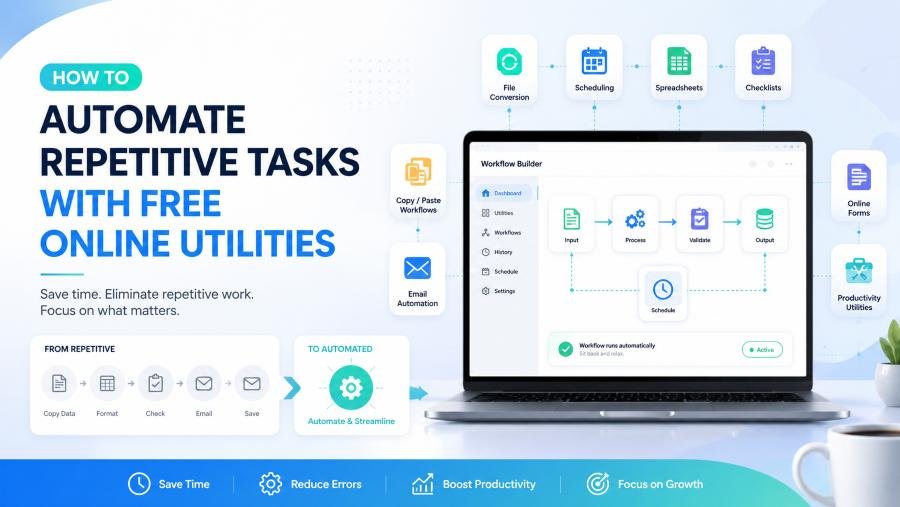
Repetitive tasks drain productivity. Every hour spent manually reformatting code, resizing images, converting file formats, or generating placeholder content is an hour not spent building features, optimizing conversions, or shipping products. In 2026, the difference between fast-moving teams and stalled ones often comes down to workflow automation — not enterprise software, but smart use of free online utilities that handle the grunt work instantly.
This guide shows you how to automate repetitive tasks with free online utilities across the workflows that slow developers, designers, marketers, and content creators down the most. You will learn which tasks are worth automating, how to chain simple tools into efficient workflows, and where Toolversal's integrated platform eliminates the friction of switching between dozens of single-purpose sites.
Why Repetitive Tasks Kill Productivity
Before automating anything, you need to understand the cost. Small tasks compound into major time sinks.
The Hidden Tax of Context Switching
Switching from your code editor to a browser tab, waiting for a tool to load, processing a file, copying the result, and switching back takes 30 to 60 seconds per task. Do this 20 times a day and you have lost 15 to 20 hours per month — nearly half a work week — to mechanical overhead.
Error Rates Rise With Repetition
Humans make mistakes when bored. A developer manually indenting 500 lines of minified HTML will miss an unclosed tag. A designer resizing 30 images by hand will distort the aspect ratio on one. A marketer converting case formats across a spreadsheet will introduce inconsistencies. Automation removes human error from predictable transformations.
Cognitive Load Steals Creative Energy
Your brain has limited decision-making capacity. When you spend mental energy on formatting, converting, and calculating, you have less available for architecture, design, and strategy. Automation preserves cognitive resources for work that actually requires judgment.
Identifying Tasks Worth Automating
Not every task should be automated. The best candidates share three traits: they are predictable, frequent, and rule-based.
Table
| Task Type | Why Automate It | Example |
|---|---|---|
| Format conversions | Same rules every time, zero judgment needed | Converting minified HTML to readable markup |
| Batch resizing | Mathematical scaling, no creative decisions | Generating responsive image sets |
| Case transformations | Strict linguistic rules apply | Converting titles to kebab-case for URLs |
| Color extraction | Pixel-level analysis, not human interpretation | Pulling brand colors from a logo image |
| Validation checks | Binary pass/fail logic | Checking JSON syntax before API deployment |
| Calculations | Formula-driven, repeatable | Converting px to rem for responsive typography |
| Placeholder generation | Template-based output | Creating Lorem Ipsum for wireframes |
Tasks to avoid automating: Creative writing, architectural decisions, user research analysis, and anything requiring contextual judgment. Automate the mechanical; keep the meaningful.
Key takeaway: Automate tasks that are predictable, frequent, and rule-based. Reserve human attention for work that requires creativity and context.
Automating Code Formatting Workflows
Developers spend significant time cleaning up code — their own, inherited from others, or exported from CMS and build tools. Online utilities can automate this entirely.
Auto-Beautify on Paste
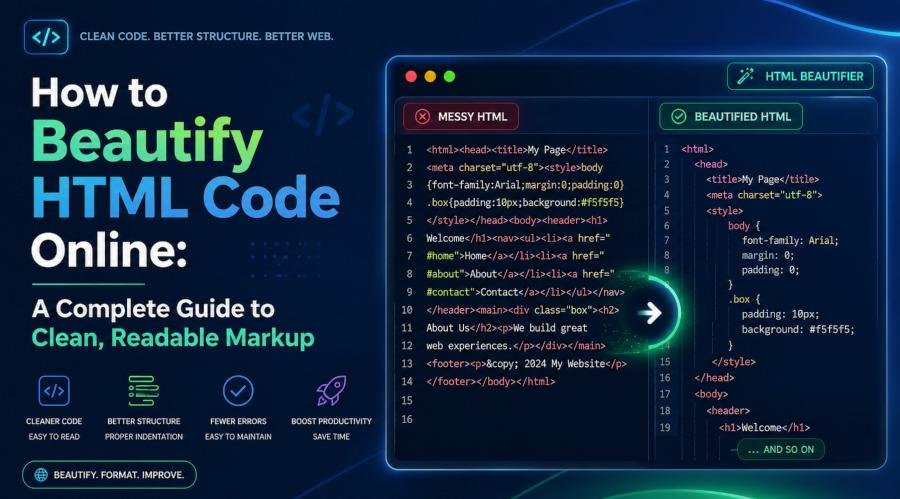
The most efficient automation is invisible. When you paste minified HTML, CSS, JavaScript, or JSON into a formatter with auto-beautify on paste enabled, the tool reformats instantly without a button click.
Workflow: Copy code from DevTools or a production bundle → paste into the formatter → receive indented, readable output immediately. No clicks. No delays.
Toolversal offers this across HTML, CSS, JS, and JSON formatters. The
js-beautify engine handles the transformation client-side in under 5 milliseconds for typical files. You can configure indent size (2 spaces, 4 spaces, tabs) and line wrap width once, and every paste follows your style guide automatically.Validate Before You Commit
Formatting without validation is half the job. A beautifier that also validates catches structural errors that formatting alone cannot fix.
Automated workflow: Paste code → auto-beautify → DOMParser validation runs → errors highlighted with line numbers → fix and reformat in one cycle.
This prevents broken markup from reaching production. Toolversal's HTML validator catches unclosed tags, mismatched elements, and invalid nesting using the browser's native
DOMParser API. The JSON validator flags trailing commas and malformed keys before they crash your API.Toggle Between Beautify and Minify
Production deployment requires the opposite of development: compressed, single-line code. Switching between these modes manually is tedious.
Automated workflow: Write and debug in beautify mode → click minify → copy production-ready output → stats bar shows exact byte savings.
Toolversal lets you switch modes on the same input without re-pasting. The stats bar quantifies file size reduction, which is useful for Core Web Vitals reporting and stakeholder updates.
Automating Image Optimization Workflows
Images are the heaviest assets on most web pages. Optimizing them manually — compressing, converting formats, resizing for breakpoints — is a massive time sink.
Batch Compression
Uploading images one by one to a compressor is inefficient. Batch processing handles entire folders at once.
Automated workflow: Drag 20 product images into the compressor → slider sets quality level → all images process simultaneously → download the optimized set as a zip.
Toolversal Image Compressor processes JPEG, PNG, WebP, and GIF locally in your browser. The slider lets you preview quality tradeoffs in real time. Because processing is client-side, there are no upload limits, no queue times, and no privacy concerns with proprietary product photography.
Alternative comparison: TinyPNG limits free users to 20 images and processes server-side. Squoosh requires per-image manual tuning. Neither matches the speed and privacy of local batch processing.
Auto-Generate Responsive Image Sets
Responsive design requires multiple sizes of the same image for
srcset attributes. Creating these manually is mathematical drudgery.Automated workflow: Upload hero image → select breakpoints (320w, 768w, 1200w, 1920w) → tool generates all sizes with correct aspect ratios → download as numbered set.
Toolversal Image Resizer maintains aspect ratio by default and offers focal-point cropping for art direction. You can generate an entire responsive image set in under a minute.
Format Conversion on Demand
Different platforms demand different formats. WebP for modern browsers, JPEG for fallback, PNG for transparency.
Automated workflow: Upload source image → select output formats → convert all simultaneously → download with descriptive filenames.
Toolversal Image Converter handles JPEG, PNG, WebP, BMP, TIFF, and GIF with transparency preservation. It also generates base64 strings for inline embedding, which automates another common manual task.
Automating Text and Content Workflows
Content creators, marketers, and developers manipulate text constantly. These utilities turn tedious transformations into instant results.
Bulk Case Conversion
Spreadsheets, URL slugs, variable names, and titles all demand different case formats. Converting manually is slow and inconsistent.
Automated workflow: Paste a list of titles → select target case (kebab-case, camelCase, snake_case, Title Case) → instant conversion with acronym preservation.
Toolversal Text Case Converter handles 10+ formats intelligently. "HTML5 Tutorial" becomes "html5-tutorial" in kebab-case, "html5Tutorial" in camelCase, and "HTML5 Tutorial" stays correct in Title Case. A word count and character count display enforces content limits automatically.
Generate Placeholder Content Instantly
Wireframes and mockups need realistic text lengths. Copy-pasting from random sources is unprofessional.
Automated workflow: Select paragraph count → choose HTML tag injection (
<p>, <ul>, <h2>) → generate formatted placeholder → paste directly into template.Toolversal Lorem Ipsum Generator outputs paragraphs, sentences, or lists with optional HTML wrapping. The "realistic text" mode generates coherent placeholder copy instead of random Latin, helping stakeholders evaluate layouts with believable content.
Batch URL Encoding
Analytics exports, migration spreadsheets, and API parameters often contain special characters that break URLs.
Automated workflow: Paste a column of URLs → batch encode → copy formatted column back to spreadsheet.
Toolversal URL Encoder processes multiple URLs simultaneously to RFC 3986 standards. The decoder reverses the process for analyzing query strings.
Generate Secure Credentials
Every new project needs API keys, database passwords, and admin credentials. Creating these manually produces weak, predictable strings.
Automated workflow: Set length (32 characters) → select character sets (upper, lower, numbers, symbols) → generate → copy to password manager.
Toolversal Password Generator creates cryptographically secure passwords with entropy display. It avoids ambiguous characters and offers pronounceable passphrase mode for credentials humans must remember.
Automating Color and Design Workflows
Design systems require consistent color management. Manual extraction, conversion, and accessibility testing is slow and error-prone.
Extract Colors From Images Automatically
Brand guidelines often start with a logo or mood board. Extracting exact hex values by eye is imprecise.
Automated workflow: Upload logo image → click any pixel → receive HEX, RGB, RGBA, HSL, and HSLA values → copy CSS-ready string.
Toolversal Color Picker extracts precise values from uploaded images and generates tints, shades, and complementary palettes automatically. This turns a 10-minute manual process into a 10-second click.
Generate CSS Gradients Visually
Complex gradients require multiple color stops, angles, and vendor prefixes. Writing the CSS by hand is tedious.
Automated workflow: Add color stops → drag to position → adjust angle → copy complete CSS with prefixes.
Toolversal Gradient Generator creates linear, radial, and conic gradients with draggable stops. Presets save brand gradients for reuse across projects.
Auto-Check Accessibility Compliance
WCAG contrast requirements are non-negotiable for legal and ethical reasons. Manual calculation is impractical.
Automated workflow: Enter foreground and background colors → instant pass/fail for AA and AAA standards → simulate color blindness → adjust and retest.
Toolversal Contrast Checker tests against WCAG 2.1 standards and simulates deuteranopia, protanopia, and tritanopia. It generates a report with exact ratio values for documentation and stakeholder review.
Automating Calculation and Conversion Workflows
Developers constantly convert units, calculate percentages, and compute date differences. Searching for formulas or opening calculator apps breaks flow.
Responsive Typography Conversions
Converting pixel values to rems or ems requires knowing the base font size. Doing this manually for every element is inefficient.
Automated workflow: Enter pixel value → set base size (16px default) → receive rem and em equivalents → copy to CSS.
Toolversal Unit Converter handles CSS-specific units (px, em, rem, vw, vh, %) with adjustable base sizes. A history log lets you revisit recent conversions without re-entering values.
Percentage Calculations for Metrics
A/B test results, discount pricing, and responsive scaling all need quick percentage math.
Automated workflow: Enter original and new values → receive increase/decrease percentage → formatted with decimal precision.
Toolversal Percentage Calculator computes standard, reverse, and compound percentages with comma-separated formatting for reports.
Date Arithmetic for Project Planning
Cookie expiration, cache TTL, content scheduling, and sprint planning require date calculations.
Automated workflow: Enter start and end dates → receive exact difference in days, months, years → toggle business days only.
Toolversal Age Calculator handles leap years automatically and excludes weekends for realistic timeline estimates.
Building Automated Workflows Across Multiple Tools
The real power of online utilities emerges when you chain them together. Here are three complete automated workflows that replace hours of manual work.
Workflow 1: Landing Page Optimization
Goal: Compress images, format HTML, minify CSS, and verify accessibility before deployment.
Steps:
-
Upload hero and product images to Toolversal Image Compressor → batch compress at 85% quality.
-
Paste CMS-exported HTML into Toolversal HTML Formatter → auto-beautify → validate structure.
-
Paste stylesheet into Toolversal CSS Formatter → minify for production.
-
Test brand colors in Toolversal Contrast Checker → confirm WCAG AA pass.
-
Copy all optimized assets and code → deploy.
Time saved: 45 minutes versus manual processing.
Workflow 2: Design System Setup
Goal: Extract brand colors, generate gradients, create placeholder content, and calculate responsive scales.
Steps:
-
Upload brand logo to Toolversal Color Picker → extract primary, secondary, and accent colors.
-
Build hero gradient in Toolversal Gradient Generator → save as preset.
-
Generate placeholder copy in Toolversal Lorem Ipsum Generator → inject HTML tags.
-
Convert desktop px values to rem in Toolversal Unit Converter → build type scale.
-
Document in style guide.
Time saved: 60 minutes versus manual extraction and calculation.
Workflow 3: Content Migration
Goal: Convert legacy content formats, encode URLs, generate slugs, and validate JSON data.
Steps:
-
Paste legacy titles into Toolversal Text Case Converter → batch convert to kebab-case for URLs.
-
Paste old URLs into Toolversal URL Encoder → batch encode special characters.
-
Paste exported data into Toolversal JSON Formatter → validate syntax.
-
Generate secure API keys in Toolversal Password Generator.
-
Import clean data to new platform.
Time saved: 90 minutes versus spreadsheet formulas and manual cleanup.
The Privacy Advantage of Client-Side Automation
Automation is only valuable if it is safe. Server-based tools create risks that client-side utilities eliminate.
Table
| Risk | Server-Based Tool | Client-Side Tool (Toolversal) |
|---|---|---|
| Data exposure | Code/images logged or cached | Nothing leaves your machine |
| Compliance breach | GDPR/HIPAA violations possible | Zero third-party data handling |
| Latency | Upload/download delays | Instant processing (<5ms typical) |
| File limits | Size and quantity caps | Limited only by browser memory |
| Availability | Downtime affects workflow | Works offline once loaded |
When automating workflows with proprietary client data, NDA-protected images, or credentials, client-side processing is the only acceptable architecture.
The Platform Advantage: Why Toolversal Becomes Your Automation Hub
Using 15 different single-purpose tools creates its own overhead: different interfaces, varying privacy policies, ad loads, and bookmark management.
Toolversal consolidates 62+ utilities into one platform with consistent design, unified shortcuts, and identical privacy standards.
Automation benefits of integration:
-
No context switching: All tools live on one domain. Your formatting, image optimization, color work, and calculations happen in adjacent tabs.
-
Consistent configuration: Set your indent size once, and it applies across HTML, CSS, JS, and JSON formatters.
-
Keyboard efficiency:
Ctrl + Entertriggers formatting in every code tool. No learning new shortcuts per utility. -
Cross-tool clipboard: Copy formatted HTML, switch to image tools, optimize assets, and paste into preview without navigating away.
-
Mobile continuity: All tools work on tablets and phones, so automation continues when you are away from your workstation.
Final Thoughts: Automation Is a Mindset, Not Just a Toolset
Automating repetitive tasks is not about laziness — it is about focus. Every minute you spend on mechanical work is a minute stolen from creative problem-solving, strategic thinking, and shipping value.
The best automation is invisible. It happens on paste, on upload, on drag-and-drop. It validates without asking, converts without prompting, and optimizes without complaining. The tools should fade into the background so your work can move to the foreground.
Free online utilities have reached a level of sophistication where they rival desktop software for most common tasks. The key is choosing tools that are fast, private, and integrated — so automation becomes a natural part of your workflow, not an extra step you need to remember.
If you are ready to reclaim hours every week, explore Toolversal's complete collection of free online utilities. From code formatting to image optimization, color management to text automation, every tool is designed to handle the repetitive work so you can focus on what matters. No installation. No sign-up. No friction.